QR table experience
The QR table experience opens your menu on the guest’s own phone with the table already set. Guests order a course, see the bill update, split bills by item or by share, tip and pay in the browser, without downloading an app or queuing at the till. A table visit earns and redeems rewards like any other order.
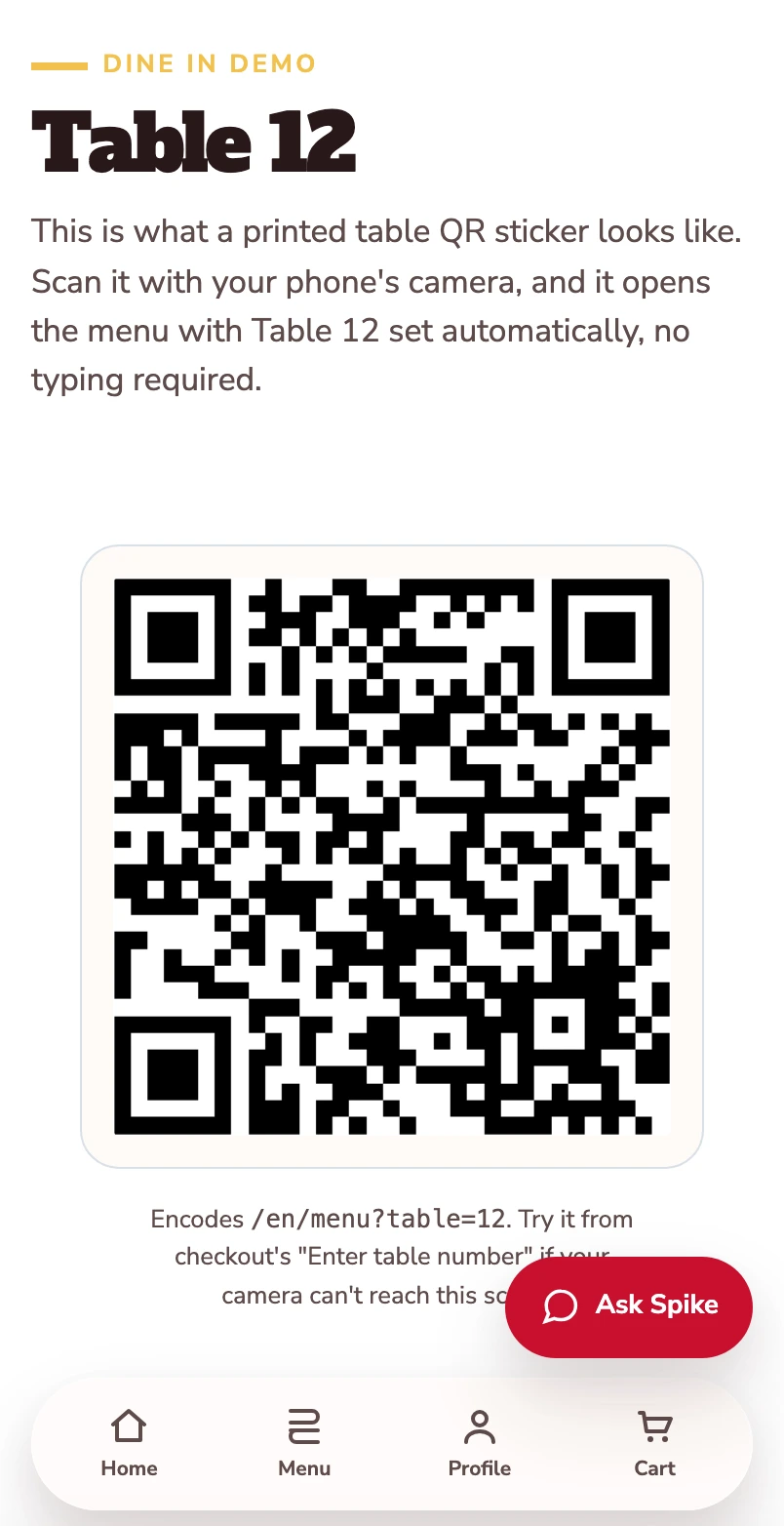
Start at Table 12.
The sample table QR opens the menu with the table number already set.
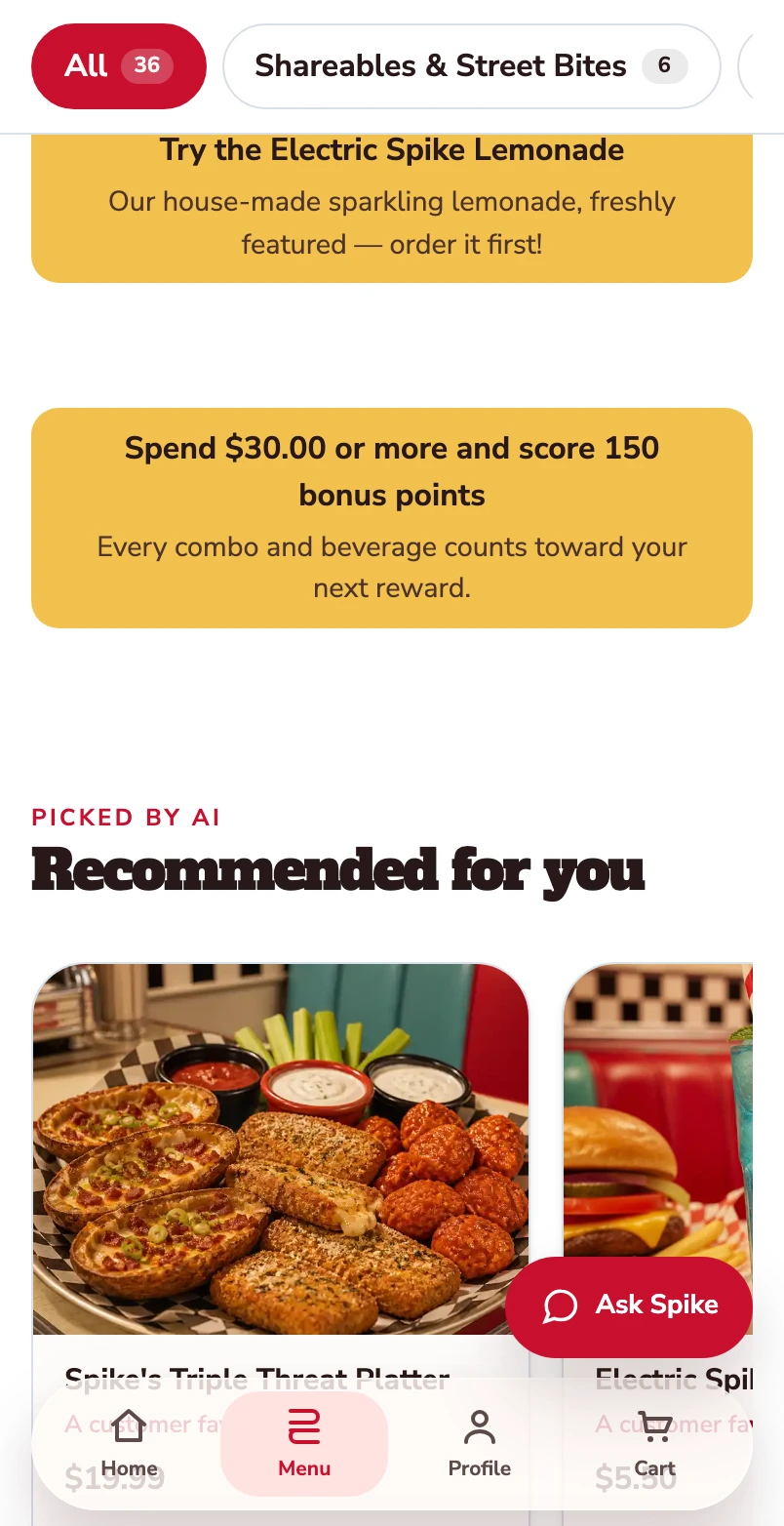
The menu knows your table.
The guest arrives at the restaurant’s menu with Table 12 already attached to the visit.
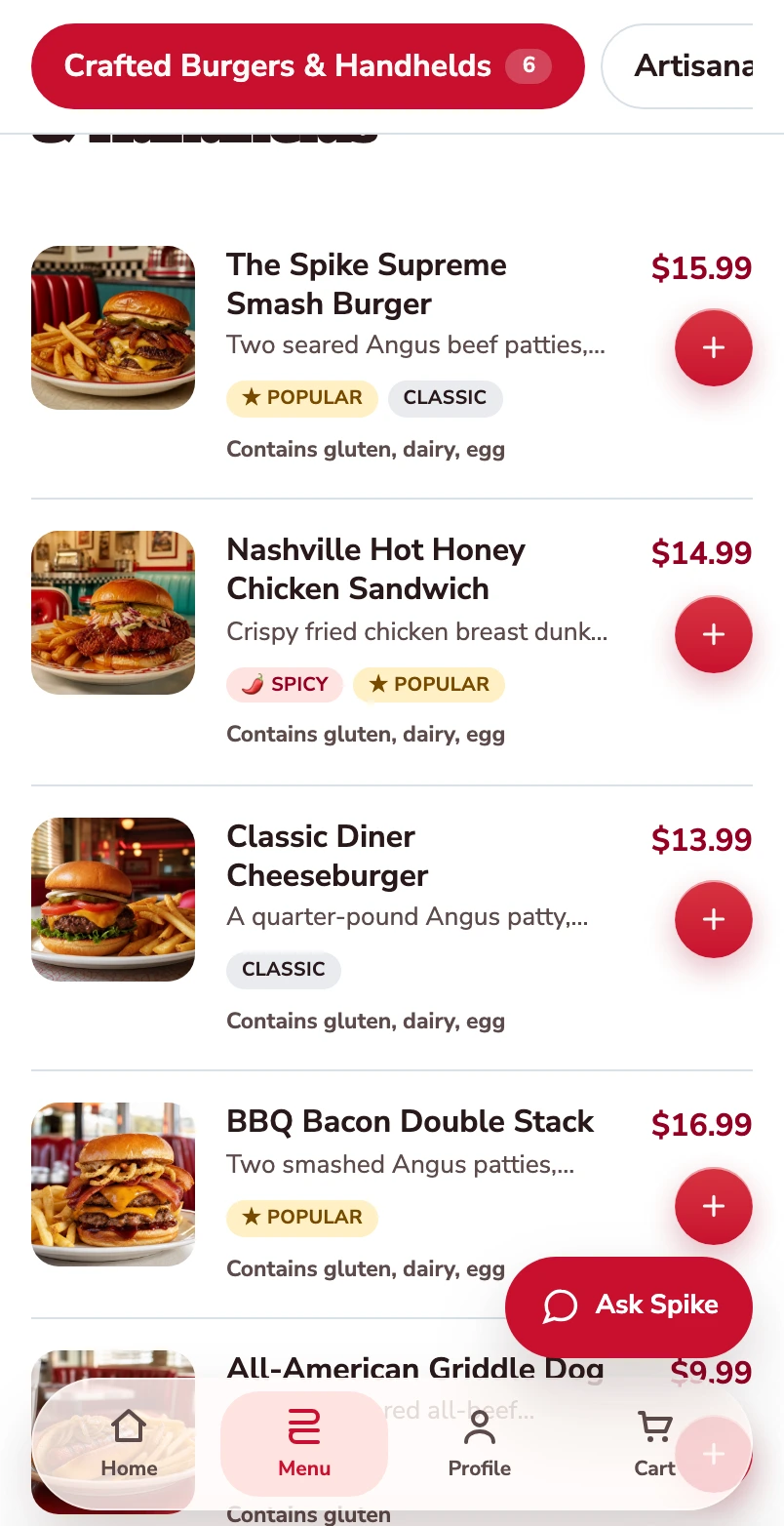
Choose your burger.
Find the Smash Burger in the menu, then open it to choose the patty, side and optional extras.
Open the burger.
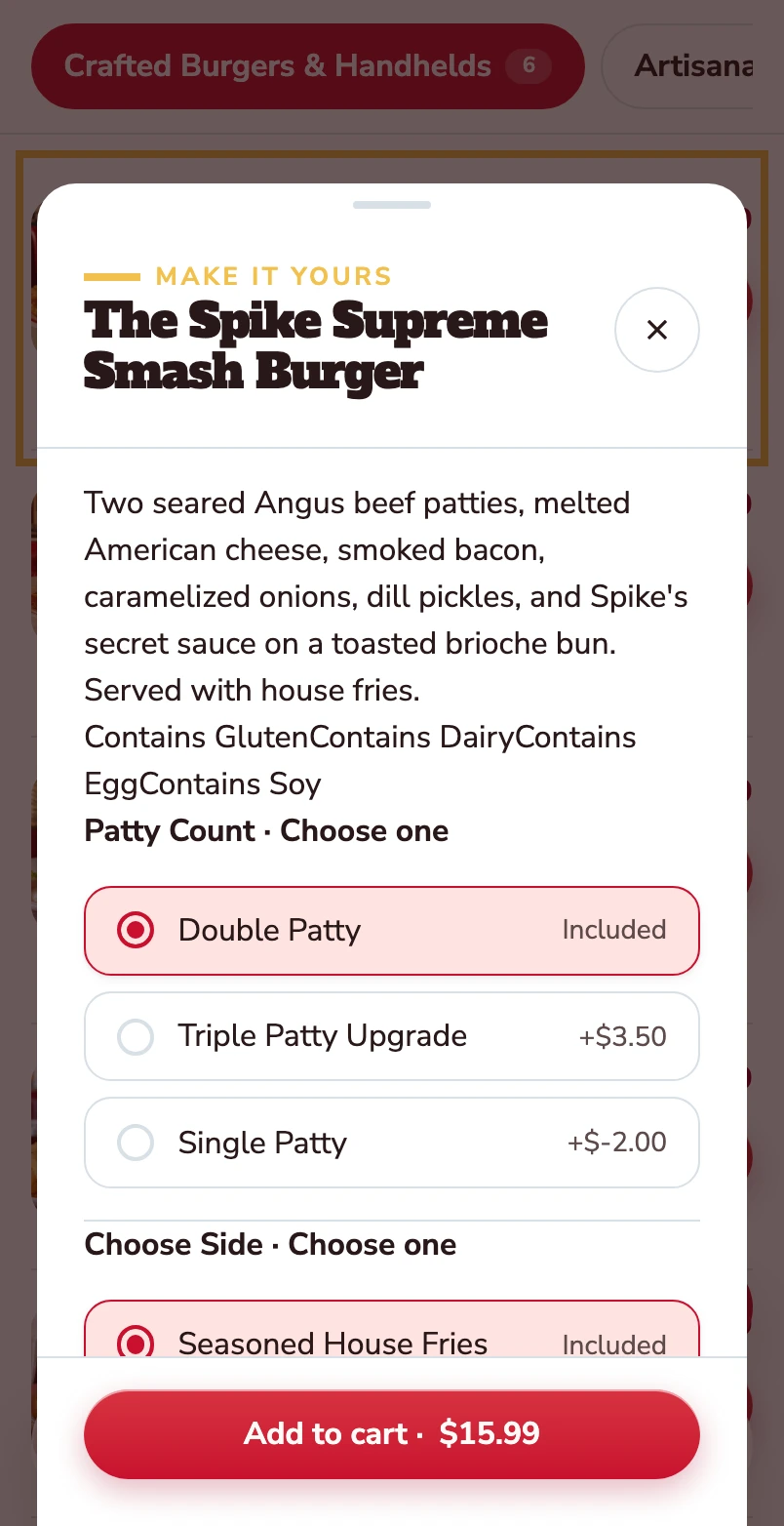
The item opens with its description, allergens and the choices attached to it.
Choose the patty and the side.
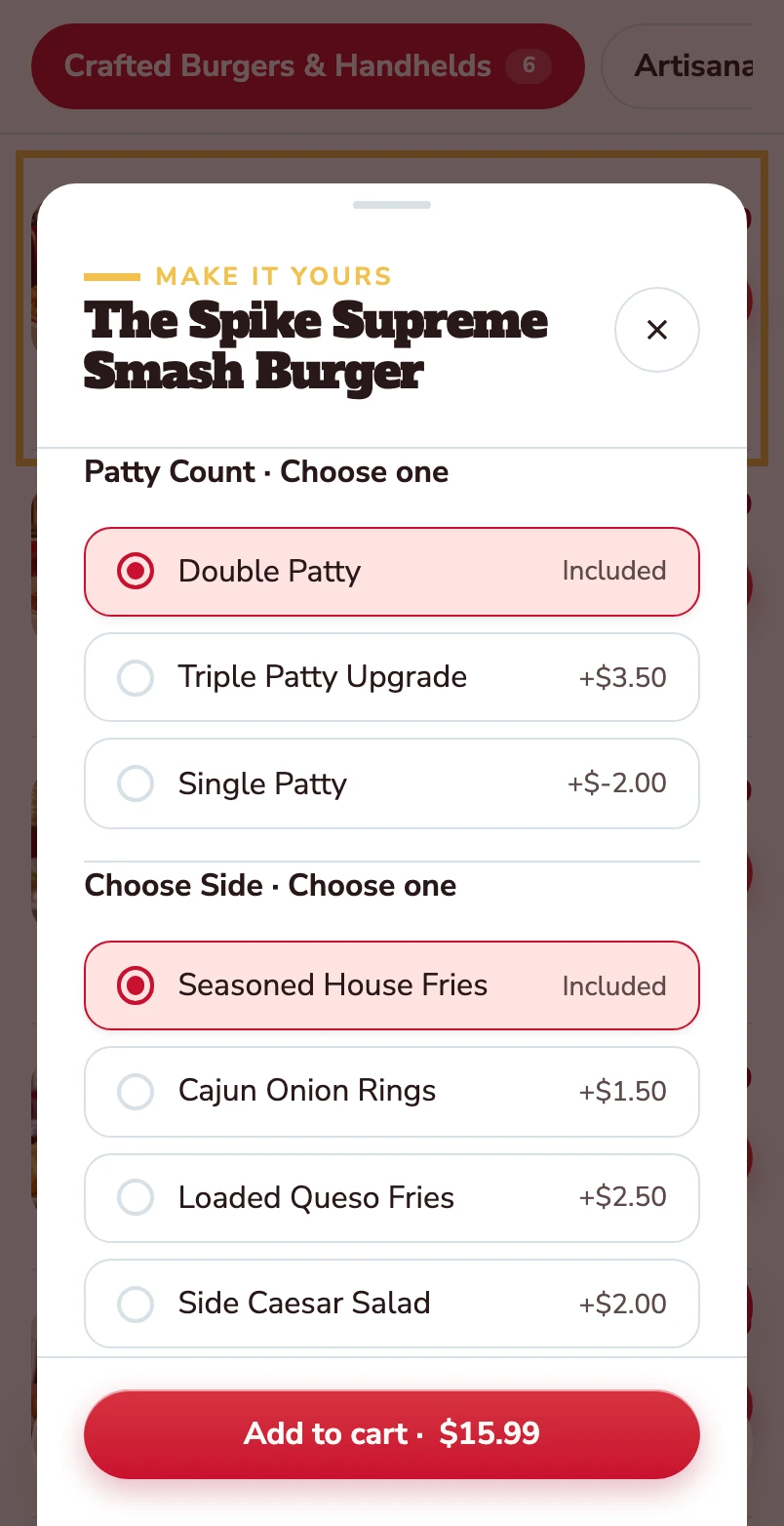
Double patty and house fries are included. Other choices show their price difference before the item goes into the basket.
Make it yours.
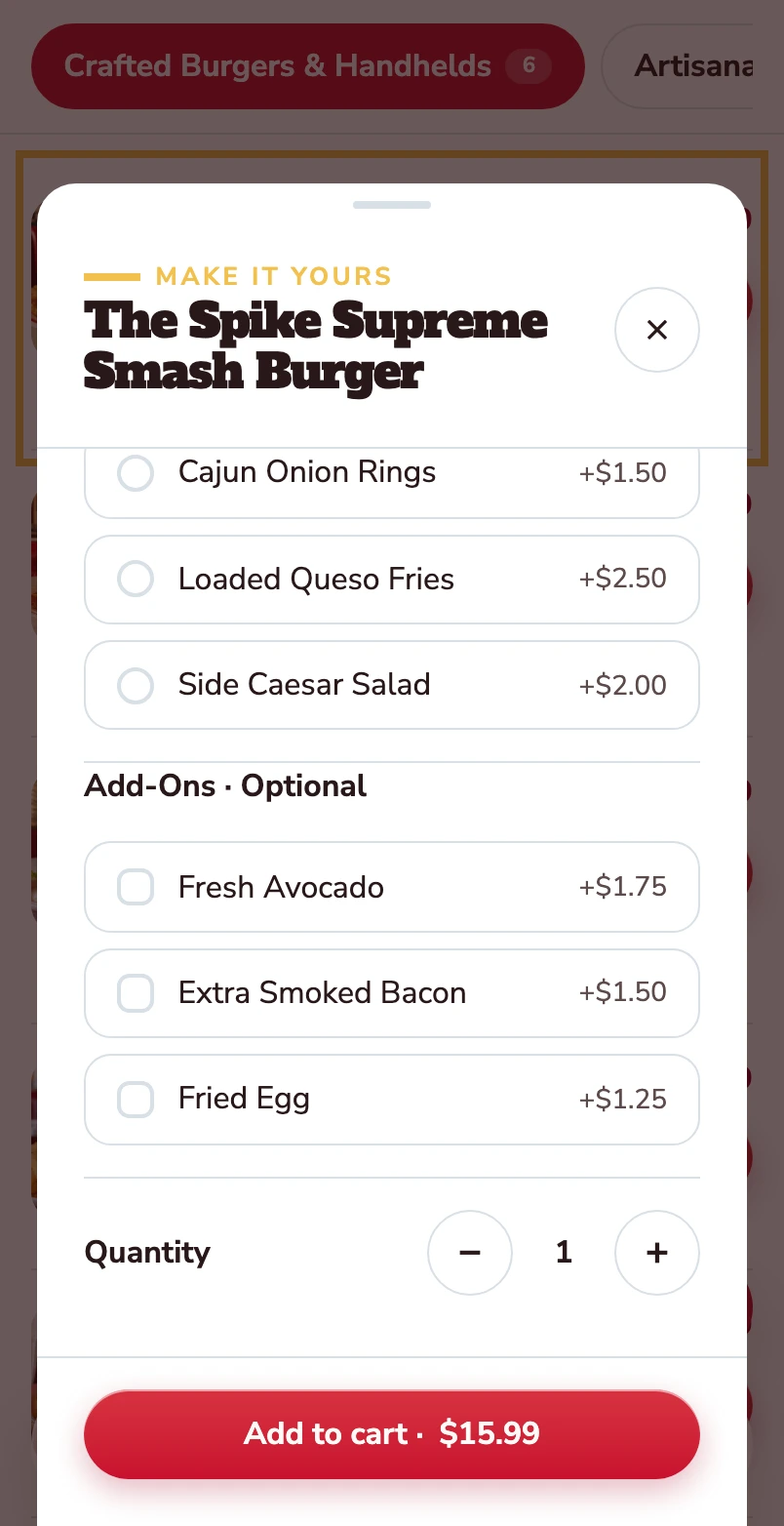
Avocado, extra bacon and a fried egg are optional. Quantity and the Add to cart total stay together at the bottom.
Added to your basket.
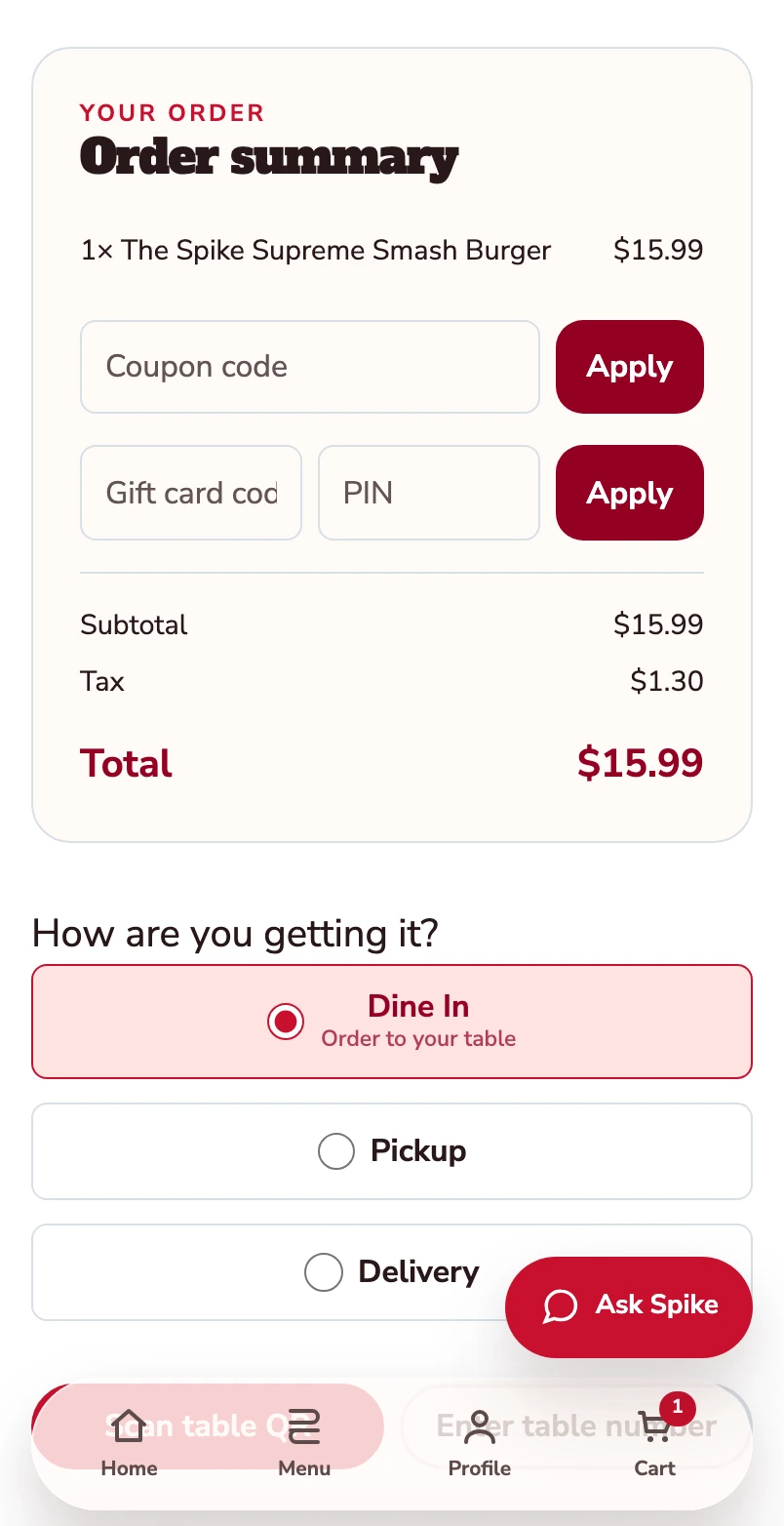
Your burger is now in the basket. The order summary shows one item and a $15.99 total before checkout. Dine In is selected.
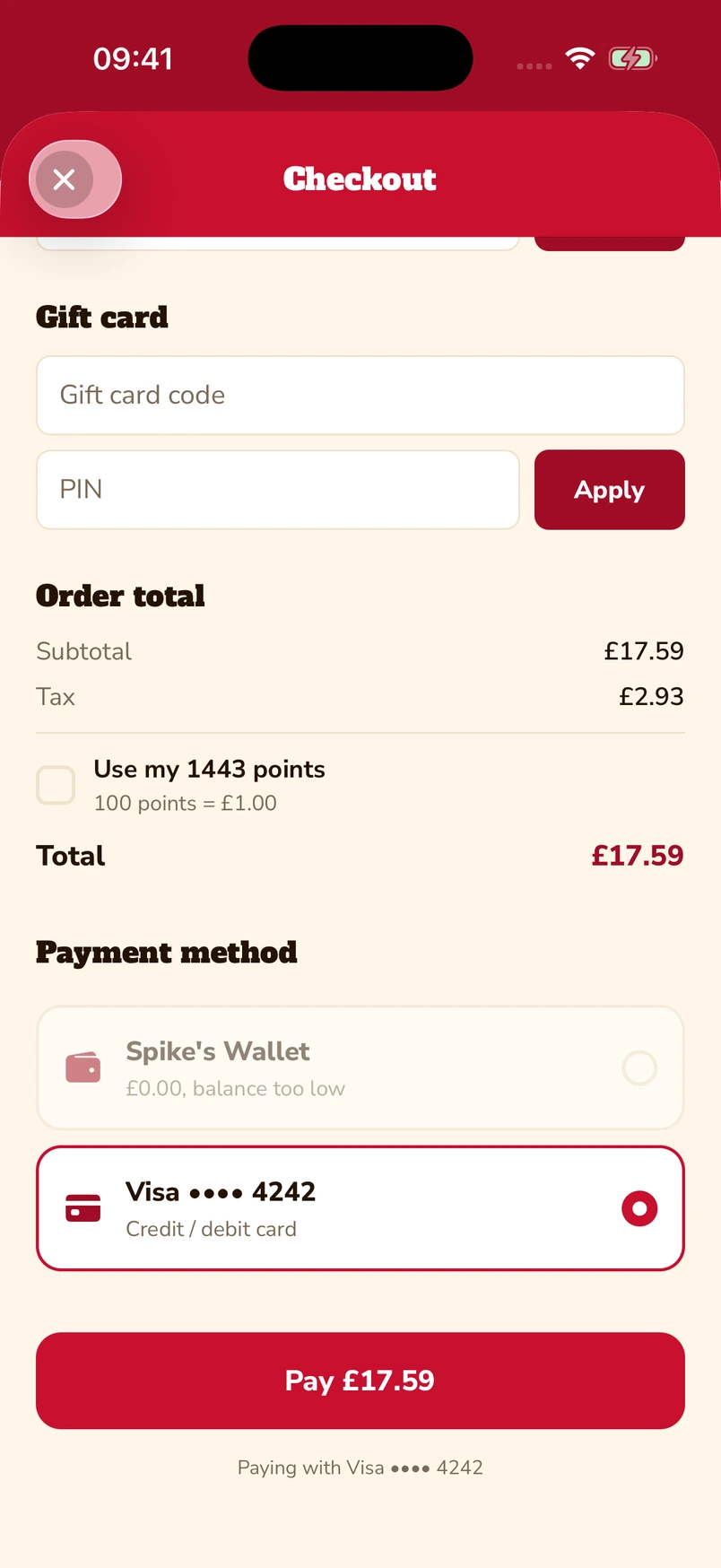
Put gift cards and points towards the bill.
Enter a gift-card code and PIN, or choose to use loyalty points at checkout. The captured app screen shows 1,443 available points alongside a saved Visa card.
Native iOS app · Spike’s Diner demo
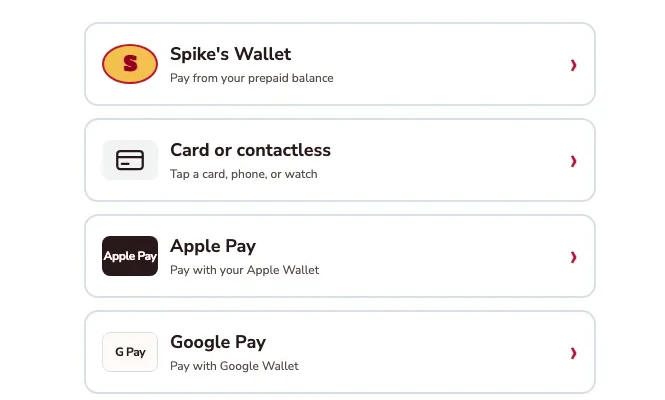
Apple Pay, Google Pay or a card.
The kiosk demo puts Apple Pay and Google Pay alongside card or contactless payment and prepaid wallet. Choose the method that suits you.
Kiosk demo · Payment-options detail · Simulated payment
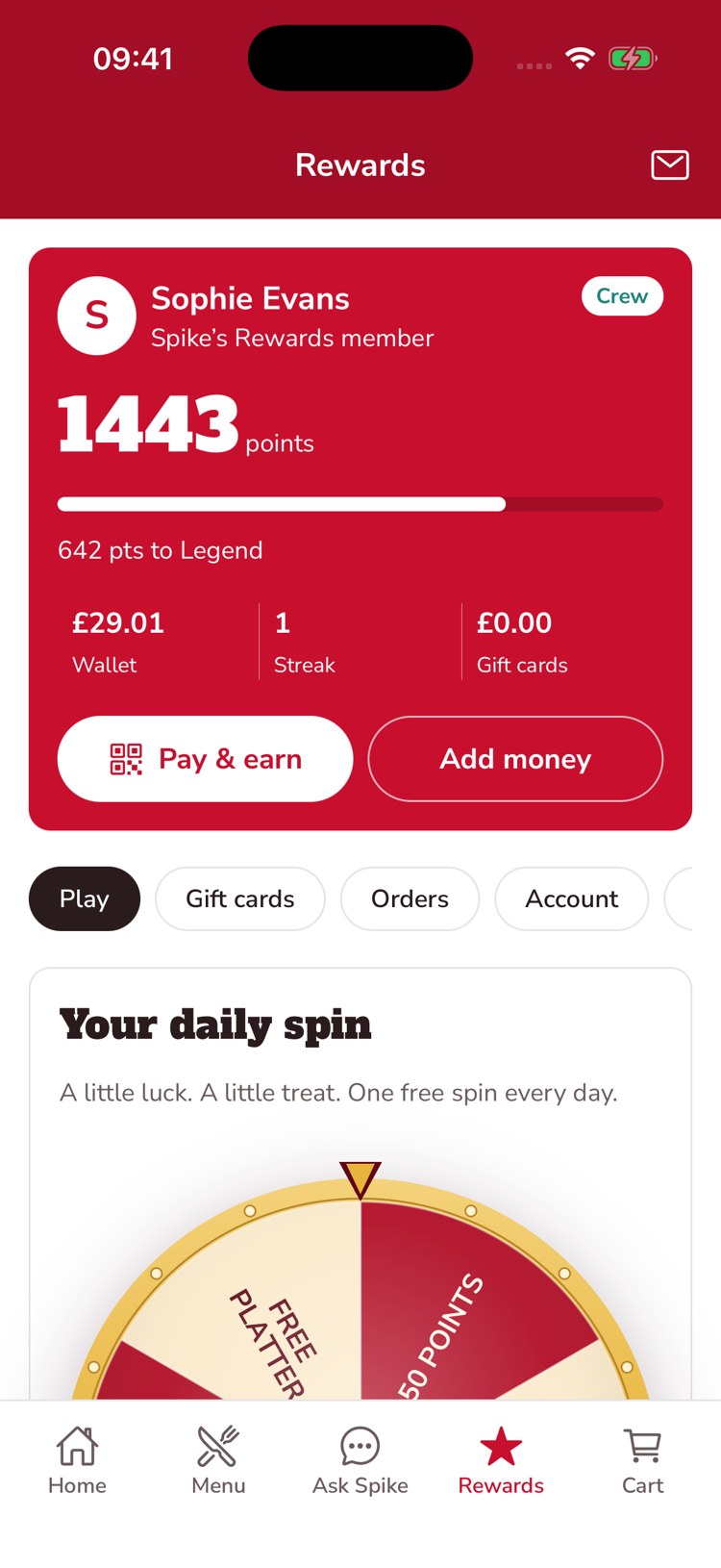
Keep a balance ready for the next visit.
The guest’s account brings prepaid balance, loyalty points and gift-card balance together. This example shows £29.01 in the wallet, 1,443 points and an Add money control.
Native iOS app · Spike’s Diner demo
Mobile web ordering · Native app & kiosk payment examples · Spike’s Diner demo
Scan, order and pay at the table
Choose a stage to watch it unfold. Order shows the menu, product choices and populated basket. Pay explores gift cards and points, Apple Pay and Google Pay, and prepaid wallet, with separate examples from the app and kiosk demos.
Start at Table 12.
The sample table QR opens the menu with the table number already set.
The menu knows your table.
The guest arrives at the restaurant’s menu with Table 12 already attached to the visit.
Choose your burger.
Find the Smash Burger in the menu, then open it to choose the patty, side and optional extras.
Open the burger.
The item opens with its description, allergens and the choices attached to it.
Choose the patty and the side.
Double patty and house fries are included. Other choices show their price difference before the item goes into the basket.
Make it yours.
Avocado, extra bacon and a fried egg are optional. Quantity and the Add to cart total stay together at the bottom.
Added to your basket.
Your burger is now in the basket. The order summary shows one item and a $15.99 total before checkout. Dine In is selected.
Put gift cards and points towards the bill.
Enter a gift-card code and PIN, or choose to use loyalty points at checkout. The captured app screen shows 1,443 available points alongside a saved Visa card.
Native iOS app · Spike’s Diner demo
Apple Pay, Google Pay or a card.
The kiosk demo puts Apple Pay and Google Pay alongside card or contactless payment and prepaid wallet. Choose the method that suits you.
Kiosk demo · Payment-options detail · Simulated payment
Keep a balance ready for the next visit.
The guest’s account brings prepaid balance, loyalty points and gift-card balance together. This example shows £29.01 in the wallet, 1,443 points and an Add money control.
Native iOS app · Spike’s Diner demo
Mobile web ordering · Native app & kiosk payment examples · Spike’s Diner demo
Select a stage to watch its steps. Pause to inspect a screen.
What your team
gets with it.
- Start with a scan
- A printed code at the table opens the menu with the table already set.
- Order and pay in the browser
- Add a course, split by item or by share, tip and pay without queuing at the till.
- The same guest relationship
- A table visit earns and redeems rewards like any other order.
Part of your complete setup.
Your website, customer app, waiter app and kiosk integration come together as standard. Retter builds and runs them under your brand, connected through the same menus, orders and guest records.
Questions about
QR table experience.
Read all FAQs What is QR table ordering?
QR table ordering lets a guest scan a code on the table, open the menu on their own phone, then order and pay without downloading an app or queuing at the till. In the version Retter builds for food and beverage groups, the table is already set when the menu opens, the bill updates as courses are ordered, guests can split it by item or by share and tip, and the visit earns and redeems rewards on the same guest account as every other order.
Can guests split the bill and tip from their phone?
Yes. With the QR table ordering Retter builds, a guest scans the code on the table, orders a course and sees the bill update on their own phone. They can split it by item or by share, add a tip and pay in the browser, without downloading an app or queuing at the till. A table visit earns and redeems rewards like any other order.
Which payment methods can guests use?
Retter builds checkout with card payments, Apple Pay and Google Pay where supported, plus gift-card redemption, prepaid wallet and loyalty points. Availability depends on the ordering channel, device and payment provider; the supported combination is agreed for your rollout. Payments in the Spike’s Diner demo are simulated.
Do guests have to download an app to order?
No. Guests order, pay and use rewards in their phone's browser, from a table QR code or from the group's ordering website. The branded iOS and Android app Retter builds for the group is for the regulars who come back: it keeps their rewards, saved payment methods, inbox and order history in one place, on the same account as the web and the table.
Do we have to replace our POS?
No. Retter builds around the POS a group already uses. The first site can go live without a POS connection: guests order and pay through the group's own website and app, staff scan a guest's code to add points and reporting starts on day one. Retter then reviews the POS and agrees which menus, orders, payments and loyalty events can be connected. How deep the link goes depends on what your POS vendor opens up. We confirm it in writing before you commit.
Let’s put your restaurant in the picture.
Tell us about your sites and the systems you use. We’ll show you the guest experience, the team’s workspace and what a first rollout would include.
The guest demo uses a fictional restaurant. Payments are simulated.
In your walkthrough
- Place an order as a guest.
- See the account and rewards behind it.
- Agree the scope of your first site.